Chaos Theatre

  • Home
  • Entertainment
    • Audio songs
    • Movies
    • Games
  • Softwares
  • Education
    • Books
    • Project n seminar topics
  • ADAMAS
    • AIT
    • AU

Friday, November 29, 2013

How to Use a Single Mouse and Keyboard Across Multiple Computers

If you’ve got multiple computers at your desk, you probably know that it’s a pain to use more than one keyboard and mouse. Here’s how to use a single keyboard and mouse on more than one PC using a tool from Microsoft.
Most geeks will be familiar with Input Director and Synergy, which do the same thing, but now Microsoft has released an application called Mouse Without Borders, which has some great features—like dragging files from one PC to another.

Using Mouse Without Borders

Once you’ve downloaded and installed the application, there’s a quick wizard that helps you setup the application for use on your network. On the first PC, you’ll want to click No to do the initial setup.

This will generate a security code that you can use on the next PC to connect to the first one.

Over on the second PC, you will want to enter the code that you generated on the first PC, and the computer name.

That’s all there is to it – now you can start using the application.


Download Mouse Without Borders from Microsoft
at 5:44 PM No comments:

Thursday, November 21, 2013

Six awesome built-in Windows utilities no one knows about


Windows 8 may not be the easiest operating system to use, but no one can accuse it of being stingy. If you poke deep inside the new OS, you'll find a generous assortment of software tools, many of which make third-party utilities redundant.
One built-in tool helps you calibrate your PC’s display. Another helps you investigate system-stability problems. And yet another lets you record on-screen actions to create tutorials for Windows applications. All of these utilities are free and come preloaded in Windows 8, with no hidden add-on costs. (You should be aware, though, that the Hyper-V virtual machine manager requires Windows 8 Pro or Enterprise, not the standard version of Windows 8.)
Have we left out any worthy built-in utilities? Read our list, and let us know in the comments section of this article.

Windows reliability history

In the Windows 8 Start screen, type reliability, click Settings, and then select View Reliability History. You’ll go to the Windows desktop, and a window with a timeline will appear. You can also access the Reliability Monitor from the Windows Control Panel, by going to System and Security > Action Center.
You can narrow down dates and specific apps for troubleshooting when you use the reliability history.
The chart is interactive. If you click a column, you’ll see detail text below. In my particular case, the reliability history let me know when my Asus AI Suite stopped working—and, in fact, that one program was the source of many of my Windows 8 app crashes. I have to note that I never once saw an error message when the apps crashed, and when I uninstalled AI Suite, I suffered far fewer stability issues.
Reliability Monitor doesn’t just report problems. It also keeps track of when you’ve installed or updated applications and drivers, so you can pinpoint exact dates and use that knowledge for troubleshooting and system repair. For example, once you know the precise date of a troublesome driver installation, you can roll back your machine via Windows System Restore to a date before that driver started wreaking havoc.

DirectX diagnostics

While I'm on the topic of troubleshooting, let’s take a look at the DirectX Diagnostic Tool, also known as DXDiag. In previous versions of Windows, DXDiag was installed whenever you installed DirectX, which usually occurred when you installed a game. But now that DirectX is part and parcel of the Windows 8 operating system, DXDiag is included from the get-go.
DXDiag gives you detailed information on the state of your DirectX-capable hardware and drivers.
DXDiag pops up a wealth of useful information for evaluating DirectX problems. Under the Display tab, you’ll see the installed GPU, the display interface (DVI, HDMI, or the like), your graphics memory allotment, and so on. The Sound tab gives you information related to the audio device and drivers. DXDiag offers a deeper level of detail than you might find in Device Manager, and it's all specific to DirectX-capable devices.
And, hey, if nothing else, it’s useful if you need to talk to tech support.

Display calibration

Out of the box, your PC monitor is usually too bright, and the colors are typically oversaturated. That may not be an issue if all you do is spreadsheet work, but if you’re editing photos or video, or even just watching movies, you'll want to fine-tune the colors for accuracy.
Sure, you could spend $60 or more for color-calibration software and hardware, and that might be money well spent if you’re a graphics professional or a movie buff who's finicky about faithful color reproduction. But the color-calibration tool built into Windows can give you most of what you need, and you don't have to shell out the cash for additional software.
Checking the color cast of the grayscale settings is just one of the steps in calibrating your display.
Type calibrate into the search box, and select Settings. You want to pick Calibrate Display Color, which is usually the top option. The color calibrator’s welcome screen includes a link to a help-center tutorial. All you really need to do, however, is walk through the steps and read the explanatory text. The first time you do this, don’t skip any of the steps. The steps are, in order: gamma settings, brightness adjustment, contrast adjustment, and color balance. (For more detail, check out “How to Calibrate Your Monitor.”)

Application steps capture

Steps Recorder lets you record each individual step of a particular Windows task. You can't record actions inside a game, but you can capture steps in standard Windows applications this way.
In earlier versions of Windows, this utility was called “Problem Steps Recorder.” Apparently, Microsoft viewed this program mostly as a tool for packaging up user inputs for troubleshooting. The Windows 8 version, however, lets users view the steps and keep a record. To run Steps Recorder, type Steps in the search box, and select Steps Recorder. You’ll get a very simple, small window.
The user interface for Steps Recorder is pretty sparse, and reflects the basic nature of the tool.
Through Steps Recorder you can capture screenshots with every action you perform: each mouse click, key press, and so on. If you’re typing in a text editor (such as Microsoft Word), only the complete text will be shown, not every keystroke. After you stop the recording, you can review what you’ve captured and do simple edits. The tool saves the whole affair in a .zip file, but saves the actual content as an MHTML (Mime HTML) file, which combines different types of content into a single HTML file.
Steps Recorder creates an MHTML file containing screenshots and descriptive text of the Windows user steps it records.
Steps Recorder is no replacement for a sophisticated screen-capture tool such as Camtasia, but it’s useful for quick-and-dirty tutorials when you need to communicate a small set of simple, discrete Windows actions.

Task scheduling

Task Scheduler is just what it sounds like: It helps you set schedules for running specific Windows applications. A typical example might be when you want to schedule a backup to run. However, Task Scheduler also lets you create complex scripts of tasks, which can run in order and at particular times.
For example, Microsoft uses Task Scheduler to set up the daily upload of information on how you use Windows to the Windows Experience team. You run Task Scheduler by typing Schedule, selecting Settings, and then clicking Schedule Tasks.
You can create scripts of tasks, and then run them at specific times, using Task Scheduler.
Some third parties misuse Task Scheduler to load and run apps on startup, when simply tapping into the Startup folder might be a better approach. So even if you don’t plan on ever creating a task script, it’s worthwhile to visit Task Scheduler on occasion to see what applications may have touched it.

Virtual machine creation and management

The Windows 8 Pro and Enterprise versions include the Hyper-V virtual machine manager that was originally built into Windows Server. However, it isn't installed by default. If you want to use Hyper-V, go to the Control Panel, click Programs, and select Turn Windows Features on or off. Choose Hyper-V and click the OK button. After Hyper-V is installed, you’ll need to reboot the PC.
You end up with two applications: Hyper-V (the virtual machine manager that runs the VM software) and the Hyper-V Manager, where you create or remove virtual machines and .VHD (virtual hard drive) files. Once you've created a VM, you can install any OS you want, including Windows 3.1 through Windows 8, Linux, BSD, and others.
Create virtual machines and virtual hard drives using Hyper-V Manager in Windows 8 Pro or Enterprise.
Note that the Windows 8 version leaves out a few features built into the server version, including GPU virtualization (no 3D acceleration in Windows 8 VMs) and some exotic networking features (such as fibre channel support). If you were a user of the Windows XP Mode feature in Windows 7, which used the older Windows Virtual PC, then Hyper-V can fill in the gap. However, unlike with XP Mode, you’ll need a valid Windows XP license key to install Windows XP into a virtual machine.
at 10:12 AM No comments:

Wednesday, November 13, 2013

Creating Wi-Fi Hotspot in Windows 8 – Step by Step Guide:

Below is the step by step guide to create and share your laptop internet connection with other wifi devices.

Things which You Will need to share your internet with other Wi-Fi Devices:

  •  A Working Internet Connection (Either Dial Up Connection or Else Lan Internet Connection)
  • A Built In or External Wifi adapter which supports the sharing ability for internet connection
  • A laptop surely and a brain!

Finding out: that whether your Wi-Fi card supports sharing:

Let’s find out that whether your wifi card supports sharing or not for this go to search and open up CMD in the administrator mod. For opening CMD in administrator mode you need to right click it and then open the cmd in “Administrator Mode“.
After you have opened cmd write the following command and look for the thing mentioned in the screen shot that whether it’s written yes or no. It it’s yes then you can go on “It means that you can enable the hotspot and can share your internet connection.”
Command to Check Sharing Compatibility of wifi network for windows 8:
netsh wlan show drivers
Now find the following , hope so that you will find a yes!
Check sharing ability of the wifi card

Creating The Wi-Fi Hotspot:

Don’t close the cmd as you are going to use cmd again. Following is the command line to create the hotspot, set the password and name it as you want too.
netsh wlan set hostednetwork mode=allow ssid=nameOfwifiHotspot key=yourpassword
The above is the command to create the hotspot. Replace “nameOfwifiHotspot” with the desired network name and replace “yourpassword” with the desired password which will be used by the others to connect to the hotspot.
Creating the hotspot in windows 8
Press the enter and hotspot will be created.

Starting the Wi-Fi Created Hotspot in Windows 8:

Now you need to start the hotspot, again you are going to need the cmd and the cmd must run in the administrator mode. Write the following command in the cmd to start the above created hotspot.
netsh wlan start hostednetwork
Enabling Wifi hotspot in windows 8
Press enter and the hotspot will be created and will be discoverable by the other devices as well.

Sharing the working internet connection with the windows 8 Wi-Fi hotspot:

All Right, everything has been done and now you only need to give your laptop’s internet connection’s access to the created hotspot, so that any user connected to the hotspot will have the internet access also. For this reason you will need to open the windows networking and sharing center.
Windows 8 searching the network and sharing center
Open up the network and sharing center, and then go to “Change adapter settings” on the top left pane. Click that to open. Here you will see your created hotspot connection plus the connection which you want to be shared with the hotspot for the internet sharing. The created hotspot connection has the star with the name. You need to open the properties of the connection which you want to be shared with the hotspot.
Networking adapters windows 8
Right click and open the properties of the connection which has the internet access and is the original internet connection of the laptop, whether it’s a dialup, local area network or anything like that. Go to the sharing tab in the properties and then tick the “Allow other network users to connect through this pc internet connection” and in the drop down below, select the hotspot connection which is “Local Area connection *21” in my case and then hit ok. Re-dial the connection or else reconnect the internet connection if needed.
Sharing internet connection with hotspot
That was it and you are done, the password to connect with the hotspot is the same which you used while setting up hotspot in the cmd. If you can’t still share the internet then reason are that firewall or an antivirus is causing the problem, try disabling the firewall if you trust the person with whom you are sharing the hotspot or else try adding an exception int he firewall or antivirus.

Update: Resolve your wifi hotspot errors like “The hosted network could not be started”:

After receiving a lot of error reporting in the below comments of this post, I have written an article on how can you resolve errors which retain your from creating a successfull internet connection shared wifi hotspot on windows 8 or windows 7, read detailed guide:
Resolve wifi hotspot errors or any other error which may happen while creating the hotspot
at 6:33 PM No comments:

Monday, November 11, 2013

Remove Start.Qone8.com redirect (Simple steps)

The AdwCleaner utility will scan your computer for Start.Qone8.com registry keys and browser extensions that may have been installed on your computer without your knowledge.
  1. You can download AdwCleaner utility from the below link.
    ADWCLEANER DOWNLOAD LINK (This link will automatically download AdwCleaner on your computer)
  2. Before starting AdwCleaner, close all open programs and internet browsers, then double-click on the AdwCleaner icon.
    [Image: AdwCleaner Icon]
    If Windows prompts you as to whether or not you wish to run AdwCleaner, please allow it to run.
  3. When the AdwCleaner program will open, click on the Scan button as shown below.
    [Image: Adwcleaner Scan]
    AdwCleaner will now start to search for Start.Qone8.com malicious files that may be installed on your computer.
  4. To remove the Start.Qone8.com malicious files that were detected in the previous step, please click on the Clean button.
    [Image: AdwCleaner removing infections]
    AdwCleaner will now prompt you to save any open files or data as the program will need to reboot the computer. Please do so and then click on the OK button.
at 5:43 PM No comments:

Monday, October 21, 2013

TuneUp Utilities 2014 14.0.1000.88 (FULL + Crack)

“CLICK HERE” for version 14.0.1000.110
“TuneUp Utilities can make your Windows operating system faster, more comfortable and more secure with just a few mouse clicks. And all operations performed on the operating system are completely safe, because all changes are monitored by TuneUp Rescue Center and can be undone at any time. All TuneUp Utilities modules can be accessed through a common interface that is divided into six categories. The software helps both beginners and experts to make Windows meet their needs in a way that is better, easier and safer. All important system options are explained in an easy way and can be turned on or off at the click of your mouse. TuneUp Utilities will then make the necessary changes in the registry or boot files automatically. We place a high value on system stability, so that Windows won’t stop working reliably. And most changes that you make can be undone in TuneUp Rescue Center – easily and safely.
The TuneUp Turbo Mode provides an immediate performance boost whenever you need it. When you use your computer in the TuneUp Turbo Mode, an analysis is performed to see which tasks, programs and functions are currently running in the background that are not strictly necessary. These programs are stopped or slowed down, allowing the additional processing power gained to be used exclusively by the programs you are actually running.”
Maintain System
Regular maintenance increases the stability of your PC, but is complicated and takes a lot of time when doing it manually. Spare yourself the stress! With TuneUp Utilities, you can clean up your computer and delete unnecessary files with only one click. Neat!
• 1-Click Maintenance and Automatic Maintenance
• Optimize system startup and shutdown
• Defragment hard disks
• Remove broken shortcuts
• Defragment registry
• Clean registry
Increase performance
Whether you are working or gaming: TuneUp Utilities increases the performance of your PC. Programs that are used rarely or never are tracked down, startup processes are shortened and unwanted garbage files are eliminated. For trouble-free working on your PC.
• Turbo Mode
• Configure Live Optimization
• Free up disk space
• Configure system startup
• Display and uninstall programs
Fix problems
With only a few clicks, you can fix typical Windows problems as easy as pie — without being a PC expert yourself. TuneUp Utilities finds errors on data carriers and fixes them automatically — about 60 of the most frequent problems under XP™, Vista™, and Windows 7™. TuneUp Utilities can even restore files deleted by accident — quickly, easily, and reliably.
• Fix typical problems
• Restore deleted data
• Check hard drive for errors
• Manage running programs
Customize Windows
Give your Windows a new look with TuneUp Utilities and customize programs and system settings to meet your needs: cool new boot screens, icons, and animations provide that personalized look for your Desktop. You can easily customize the appearance of Windows and settings of many programs to your liking.
• Personalize Windows appearance
• Change Windows settings
What’s New
TuneUp Utilities 2014 now cleans over 150 programs, including iTunes®, 28 windows functions and 25 browsers, removing unwanted duplicate files, traces and other computer residue.
Our premium features set new standards in cleaning, thanks to our intensive research. And with features like New Flight Mode, Live Optimization & Program Deactivator TuneUp Utilities speeds and optimizes your PC laptop or tablet like never before.
NEW Duplicate Finder – Find and remove duplicate photos, music and file
NEW Flight Mode – More battery life on the go
NEW User Interface – Your Center for PC Optimization
IMPROVED Disk Cleaner – Now cleans iTunes®, ACDSee™, CyberLink Power DVD™ & more
Other Key Innovations:
IMPROVED Automatic Cleaning Updates: We regularly improve our cleaning algorithms and increase the number of applications that can be cleaned.
Futureproof – Now Optimizes Windows® 8.1. TuneUp Utilities 2014 is compatible with not just Windows 8, but also the brand-new Windows 8.1 to help you keep your new fun, fast, and reliable.
Act now! With over 30 easy to use tools TuneUp Utilities 2014 can get your PC in top shape

ENJOY this FULL Software TuneUp Utilities 2014 14.0.1000.88 with Working Crack.

at 11:48 AM No comments:

Wednesday, October 9, 2013

Useful Electrical Equations

Quick Electrical Calculation

1HP = 0.746KWStar Connection
1KW = 1.36HPLine Voltage = √3 Phase Voltage
1Watt = 0.846 Kla/HrLine Current = Phase Current
1Watt = 3.41 BTU/HrDelta Connection
1KWH = 3.6 MJLine Voltage = Phase Voltage
1Cal = 4.186 JLine Current = √3 Phase Current
1Tone = 3530 BTU
85 Sq.ft Floor Area = 1200 BTU
1Kcal = 4186 Joule
1KWH = 860 Kcal
1Cal = 4.183 Joule
  • For Sinusoidal Current: Form Factor = RMS Value/Average Value = 1.11
  • For Sinusoidal Current: Peak Factor = Max Value/RMS Value = 1.414
  • Average Value of Sinusoidal Current (Iav) = 0.637 x Im (Im = Max.Value)
  • RMS Value of Sinusoidal Current (Irms) = 0.707 x Im (Im = Max.Value)
  • A.C Current = D.C Current/0.636.
  • Phase Difference between Phase = 360/ No of Phase (1 Phase=230/1=360°, 2 Phase=360/2=180°)
  • Short Circuit Level of Cable in KA (Isc) =
    (
    0.094 x Cable Dia in Sq.mm) /√ Short Circuit Time (Sec)
  • Max.Cross Section Area of Earthing Strip (mm2) = √(Fault Current x Fault Current x Operating Time of Disconnected Device ) / K
    K = Material Factor, K for Cu = 159, K for Al = 105, K for steel = 58 , K for GI = 80
  • Most Economical Voltage at given Distance = 5.5 x √ ((km/1.6) + (kw/100))
  • Cable Voltage Drop (%) =
    (
    1.732 x current x (RcosǾ+jsinǾ) x 1.732 x Length (km) x 100) / (Volt(L-L) x Cable Run.
Read more »
at 11:48 AM No comments:
Labels: Electrical

Monday, October 7, 2013

How to enable third party applications?

In any android, you will not be able to directly install a third party application and Google has dis-enabled it by default. To enable your phone to install third party application follow the below steps:
Goto Menu -> Settings -> Applications -> Enable unknown sources -> Click ok in the pop up.
How to Enable Third Party Apps Installation on Android Phones
at 4:46 PM No comments:

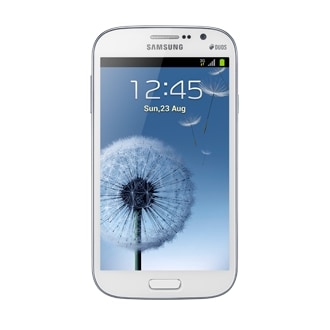
How to Root Galaxy Grand Duos I9082 on Android 4.2.2 Jelly Bean Firmware


How to Root Galaxy Grand Duos I9082 on Android 4.2.2 Jelly Bean Firmware

September 4, 2013

Samsung has released the Android 4.2.2 Jelly Bean update for Galaxy Grand Duos with model number GT-I9082. The new official firmware is now available as an Over-The-Air (OTA) update as well as through Samsung KIES.

Samsung Galaxy Grand Duos I9082 users who have already updated their devices with Android 4.2.2 Jelly Bean, may root their devices using the tutorial below.

Disclaimer: Rooting voids the warranty of your device. We and the developer of this rooting procedures shall not be held responsible if any undesirable outcomes may happen to your device. use of this root guide is solely at your own risk!

Pre-Requisites
1. Install USB Drivers for Samsung Galaxy Grand Duos on your computer.
2. Enable USB Debugging Mode on the phone by navigating to Settings >> Developer Options.
3. Make a backup of all your important data before following the guide.
4. The Galaxy Grand Duos should be factory unlocked and not locked to any particular carrier.
5. Ensure the battery of the phone is charged more than 80 percent.
6. The CWM Recovery and SuperSU files works only on Samsung Galaxy Grand Duos I9082. Applying these on any incorrect variant might brick the device. Verify the model number of the Galaxy Grand Duos by selecting Settings >> About Phone.

File Required
1. Odin3_v3.07.rar
2. CWM-touch_i9082_chotu.tar.zip (Mirror Link)
3. Fix-Recovery.zip (Mirror Link)
4. UPDATE-SuperSU-v1.51.zip or the latest version.

Steps to Install CWM Recovery on Samsung Galaxy Grand Duos I9082

Read more »
at 4:12 PM No comments:

Saturday, October 5, 2013

Microsoft Toolkit v2.4.4 Final "Windows 8 & Ms office 2013 activator"


Microsoft Toolkit

Microsoft Toolkit v2.4.1 | FINAL  | Size 38 MB

================
[Software INFO:]
================

This is a set of tools and functions for managing licensing, deploying, and activating Microsoft Office and Windows. All output from these functions is displayed in the Information Console. All functions are run in the background and the GUI is disabled to prevent running multiple functions, as they could conflict or cause damage if run concurrently. The Microsoft Office Setup Customization Functions (Customize Setup Tab), AutoKMS Uninstaller (if AutoKMS is installed), AutoRearm Uninstaller (if AutoRearm is installed), Office Uninstaller and Product Key Checker work even if Microsoft Office or Windows is not installed/supported.
Microsoft Toolkit Functions
Show or hide text
Main Tab:
Office Information: This states if Microsoft Office is installed and supported on your PC and whether it is 32 bit (x86), 64 bit (x64) or 32 bit running on 64 bit OS (x86-64). It will also tell you the Product Edition and Version Number.
Windows Information: This states if Microsoft Windows is installed and supported on your PC and whether it is 32 bit (x86), 64 bit (x64) or 32 bit running on 64 bit OS (x86-64). It will also tell you the Product Edition and Version Number.
Uninstall Office: Run a script that will uninstall Microsoft Office if you can't manually remove it. Microsoft Office 2003 and later is supported.
Activation Tab:
EZ-Activator: This is a simple setup for KMS Activation. Unlike previous versions, it CANNOT use KMS activation if you are using Retail License. EZ-Activator gathers information about your licensing status to provide the best method of activation. It can automatically attempt possible fixes in case of activation failure, and can reverse all changes in case of total failure.
It automatically installs all KMS Keys for your system, attempts activation for only KMS Licenses, and if successful, installs AutoKMS automatically.
Read more »
at 9:40 AM No comments:
Labels: Softwares

Monday, September 30, 2013

Krrish 3 - Download MP3 Songs


krrish3

01 – Raghupati Raghav – Neeraj Shridhar, Monali Thakur & Bob
02 – Krrish Krrish (Title) – Anirudh Bhola, Rajesh Roshan, Mamta
03 – Dil Tu Hi Bataa – Zubeen Garg, Alisha Chinoy
04 – You Are My Love – Mohit Chauhan, Alisha Chinoy
05 – God Allah Aur Bhagwan – Sonu Nigam, Shreya Ghoshal
06 – Raghupati Raghav (Remix) – Neeraj Shridhar, Bob, Monali Thakur
07 – Dil Tu Hi Bataa (Remix) – Zubeen Garg, Alisha Chinoy

Download Krrish 3 – All In One:

Krrish 3 [Download 128Kbps]

Krrish 3 [Download 320Kbps]


at 2:55 PM No comments:
Labels: Audio songs

Wednesday, September 25, 2013

PSUs Recruitment through GATE2014

PSUs considering GATE scores for entry level Engineer positions
Logos Name of PSU Number of vacancies Streams Eligible CTC Links
POWER Power grid NA EE 13.4 lakhs PA Click here For more details
NHPC NHPC 180 CE,ME,EE 5-5.5lakhs PA Click here For more details
HPCL NA ME, CE, EE, EC, IN 6 Lakhs PA Click here For more details
MECL NA ME, Chemist, Geologist and Geophysicist NA Notification to be out soon
 NTPC_Logo.svg NTPC NA EE, ME, CE, IN, EC 6 Lakhs PA Click here For more details
250px-Indian_Oil_Logo.svg IOCL NA ME, CE, IN , CH, EE, MT 7-10.5 Lakhs PA Click here For more details
200px-Bharat_Petroleum_Logo.svg BPCL NA ME ,CH NA Click here For more details
mdl-logo MDL 45 ME ,EC,EE NA Click here For more details
 GAIL GAIL NA ME, IN , CH, EE 6- 6.5 Lakhs PA Click here For more details
Neyveli_Lignite_Corporation. NLC 78 ME, EE, EC, MN, IN ,CE, CS 6.15 Lakhas PA Click here For more details


source: http://gateforum.com/psus-recruitment-through-gate2014/

 
at 5:34 PM No comments:
Newer Posts Older Posts Home
Subscribe to: Comments (Atom)
Blogger Tips And Tricks|Latest Tips For Bloggers Free Backlinks
Click on above scrolling for Facebook Page

Recent Posts

Designed by Sekh@r..!

Flash Labels by NBT

Popular Posts

  • How to disable taskbar preview thumbnails in Windows 10
    In Windows 10, when you hover over a taskbar button of a running app or group of apps, a thumbnail preview appears on the screen. For a s...
  • List of Edison patents
    Below is a list of Edison patents . Thomas Edison was an inventor who accumulated 2,332 [ 1 ] patents worldwide for his inventions . 1,09...
  • The origins of field placement names in cricket
    Cricket fielding positions For ardent cricket followers over the years, the term ‘point’ can easily be associated with the man statio...
  • Matlab 2013a full version Free Download (Windows and Mac)
    Download Matlab R2013 ISO for windows or unix system for free. Matlab 2013 is the latest matlab software version and this is most popula...
  • WHY TO VISIT TEMPLES ???
    Believe in science not the crap....   Scientific Reasons behind visiting temples : There are thousands of temples all over India in ...
  • How to remove trailing spaces from cells in Microsoft Excel?
    Sometime we may add unwanted spaces in Excel cells, which are not easy to find out but affect sorting, calculating, or others. This artic...
  • 20 Tips To Use Google Search Efficiently
    Millions of people use Google search every day for a variety of reasons. Students use it for school, business people use it for research,...
  • The Save As dialog box appears two times when you try to save a file in Word 2010 or in Word 2007
    SYMPTOMS When you click  Save or Save As  to save a file in Microsoft Word 2010 or in Microsoft Word 2007, the  Save As  dialog box a...
  • 21 Golden Electric Safety Rules
    Rule no. 1 Avoid contact with energized electrical circuits. Please don’t make fun of this rule if you already know this ( and you proba...
  • History of electirc discoveries timeline
    Click here for visual description   Year Event 600 B.C. Thales of Miletus discovered static electri...

See all Posts here

  • ►  2017 (2)
    • ►  January (2)
  • ►  2016 (11)
    • ►  October (2)
    • ►  August (2)
    • ►  March (1)
    • ►  February (1)
    • ►  January (5)
  • ►  2015 (14)
    • ►  December (1)
    • ►  November (1)
    • ►  September (1)
    • ►  August (2)
    • ►  July (3)
    • ►  May (1)
    • ►  February (1)
    • ►  January (4)
  • ►  2014 (18)
    • ►  December (4)
    • ►  October (2)
    • ►  September (2)
    • ►  July (3)
    • ►  June (1)
    • ►  May (1)
    • ►  March (3)
    • ►  February (2)
  • ▼  2013 (88)
    • ▼  November (4)
      • How to Use a Single Mouse and Keyboard Across Mult...
      • Six awesome built-in Windows utilities no one know...
      • Creating Wi-Fi Hotspot in Windows 8 – Step by Step...
      • Remove Start.Qone8.com redirect (Simple steps)
    • ►  October (5)
      • TuneUp Utilities 2014 14.0.1000.88 (FULL + Crack)
      • Useful Electrical Equations
      • How to enable third party applications?
      • How to Root Galaxy Grand Duos I9082 on Android 4.2...
      • Microsoft Toolkit v2.4.4 Final "Windows 8 & Ms off...
    • ►  September (12)
      • Krrish 3 - Download MP3 Songs
      • PSUs Recruitment through GATE2014
    • ►  August (5)
    • ►  July (4)
    • ►  June (5)
    • ►  May (8)
    • ►  April (3)
    • ►  March (6)
    • ►  February (5)
    • ►  January (31)
  • ►  2012 (292)
    • ►  December (12)
    • ►  November (2)
    • ►  October (19)
    • ►  September (15)
    • ►  August (5)
    • ►  July (18)
    • ►  May (5)
    • ►  April (13)
    • ►  March (96)
    • ►  February (41)
    • ►  January (66)
  • ►  2011 (85)
    • ►  December (23)
    • ►  November (16)
    • ►  October (13)
    • ►  August (2)
    • ►  July (2)
    • ►  May (11)
    • ►  April (18)

Total Pageviews

Sekh@r...! ©. Picture Window theme. Powered by Blogger.